Bounceler Integration Guide
Build cleaner Mailchimp audiences with Bounceler
Use Bounceler in Mailchimp to focus on recently verified contacts and reduce the risk of sending to undeliverable emails.
Navigation
Open API docsInstallation requirement
- In Bounceler, go to Integrations.
- Open the Mailchimp tab.
- Click + Add another Account.
- Complete the Mailchimp connection flow.
- Your Mailchimp audiences and segments will refresh automatically once the connection is completed.
Note: If you later add more audiences or segments in Mailchimp, open the connected account in Bounceler and click Refresh Accounts.
Verification options
You can run verification in two ways: as a one-time verification or as a recurring verification schedule.
- One-time verification: Use the verification button on the selected Mailchimp audience or segment when you want to verify the contacts immediately.
- Recurring Verification: Enable the scheduler on the selected audience or segment and choose how often it should run. Bounceler will automatically re-verify those contacts on the saved cadence.
How to use the verification fields
Use the Bounceler verification fields in your integration lists, workflows, and reporting.
- Bounceler writes the results back to Mailchimp contact fields: Email Verification Score and Email Verification Timestamp.
- Use Email Verification Score as a numeric filter to keep only deliverable contacts in Mailchimp segments and automations.
- Use Email Verification Timestamp to keep the audience fresh, for example by including only contacts verified in the last 31 days.
- Scores above 89 are safe to accept and should not bounce. Lower scores usually point to gibberish addresses, role addresses, or undeliverable emails.
Score ranges
| Score | Meaning | Typical guidance |
|---|---|---|
| 90-100 | High confidence | Safe to accept |
| 80-89 | Good confidence | Usually acceptable, depending on your policy |
| 70-79 | Moderate confidence | Review if you apply stricter quality controls |
| 0-69 | Low confidence | Higher risk of invalidity, poor quality, or delivery issues |
What affects the score
The score is based on a combination of verification and quality signals, including:
- Mailbox and domain validity
- Deliverability confidence
- Indicators of disposable or temporary use
- Patterns associated with low-quality submissions
Examples of signals that may reduce the score include:
- Role-based addresses such as
info@,support@, orsales@ - Gibberish-looking addresses that appear random or artificially generated
- Disposable or temporary addresses
- Risky domain or mailbox signals
- Reduced deliverability confidence
How to use the score
A common approach is to treat scores of 90 and above as safe to accept, use scores between 70 and 89 with additional review where needed, and treat scores below 70 as higher risk.
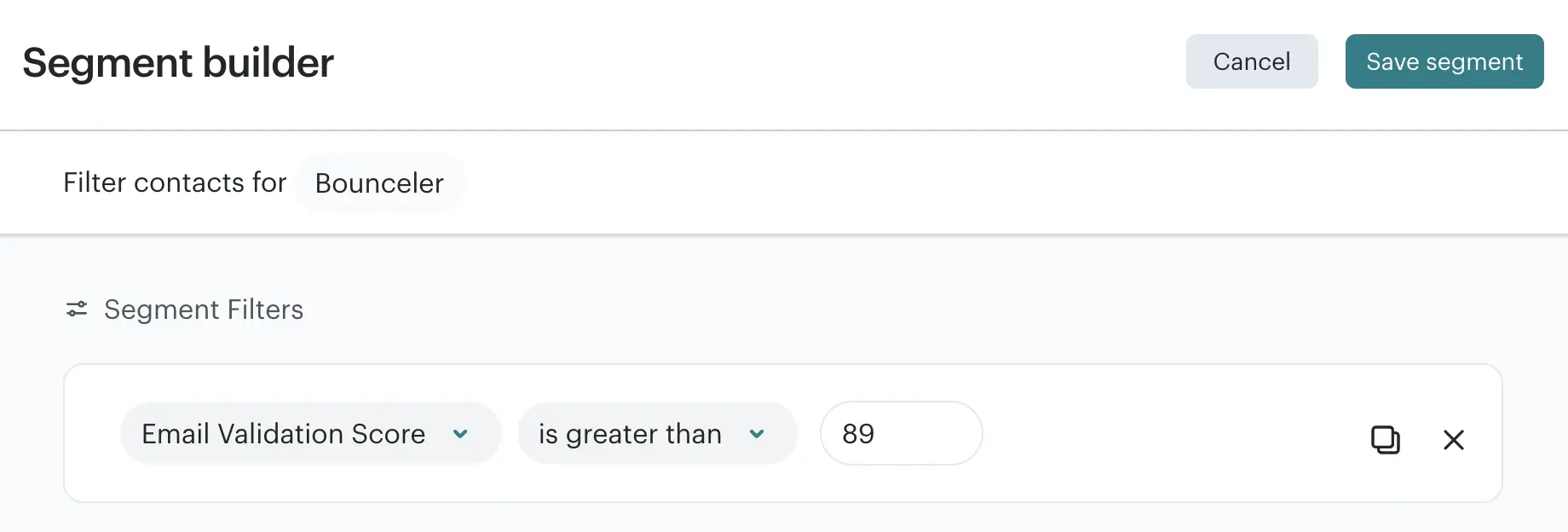
Recommended score rule: Email Validation Score is greater than 89
Important
The score is designed to support decision-making, not replace it. An address may still technically exist even if its score is reduced by role-based, gibberish, or other risk signals.
For best results, use the score together with the full verification result and your own business rules.
Example setup